Documentation article
Creating and Editing Campaigns
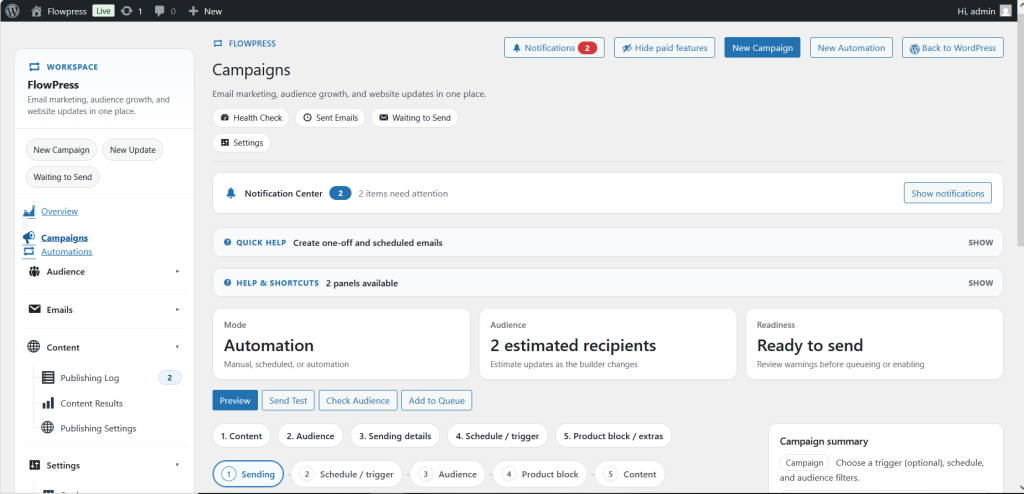
Create a campaign when you want to send a product-focused email to subscribers.
What this is for
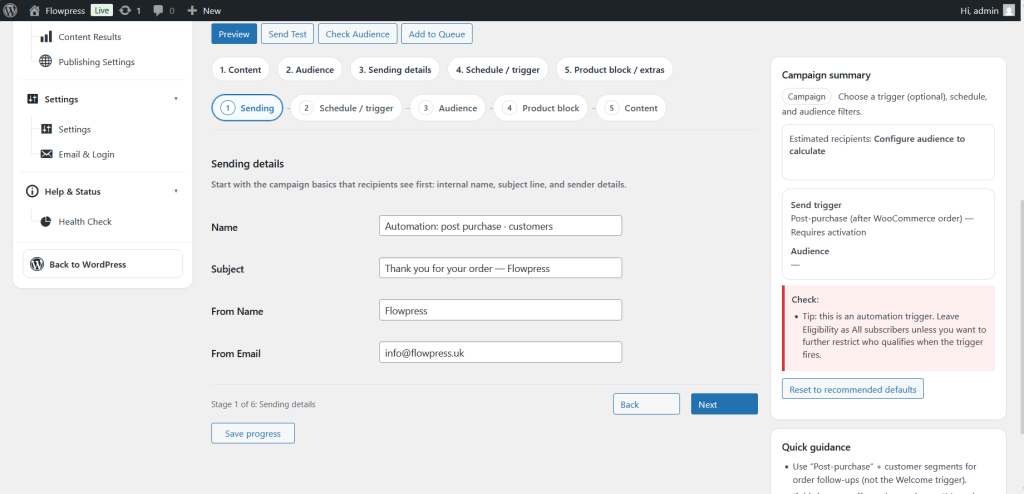
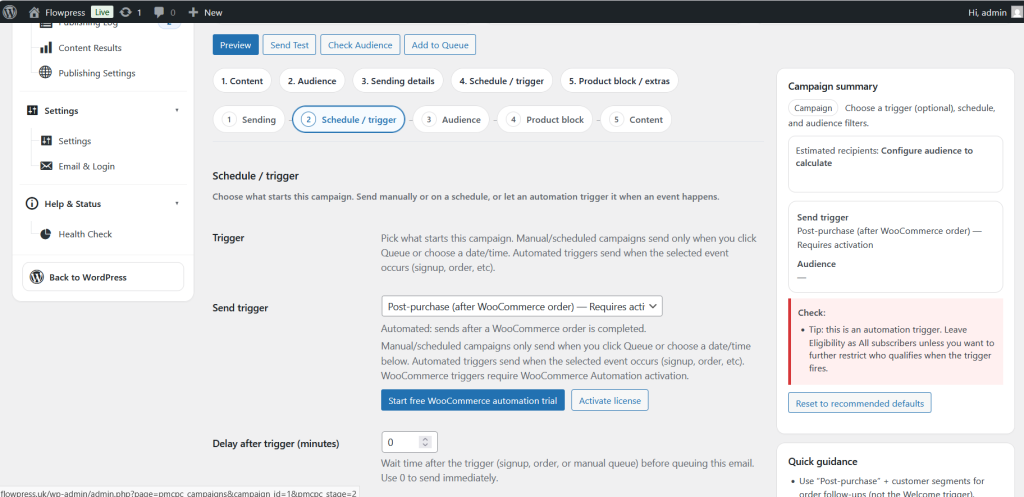
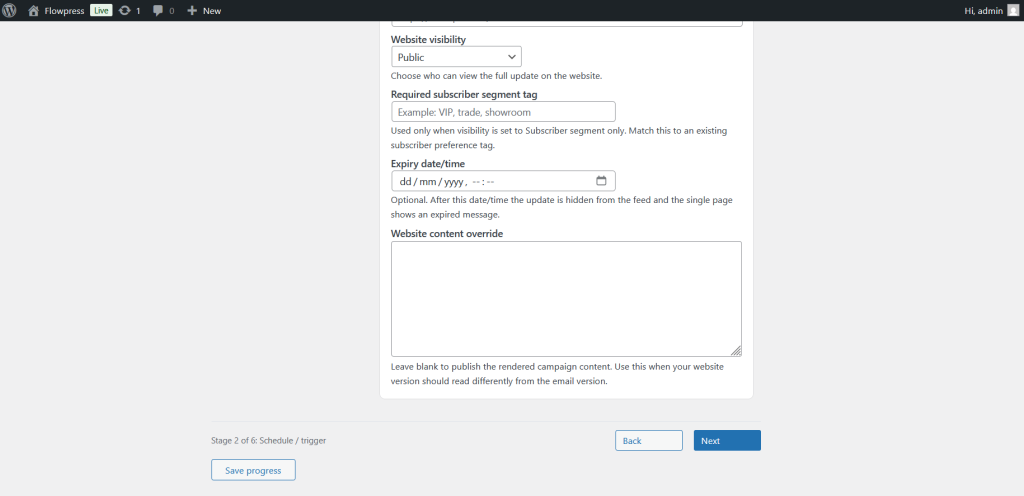
The campaign editor brings together subject lines, content, product selection, audience targeting and testing in one workflow.
How to use it
- Go to FlowPress → Campaigns.
- Click New Campaign.
- Add a clear campaign name for internal reference.
- Enter the email subject and preview text.
- Choose the products or product rules that should appear in the email.
- Review the generated content and make any manual edits needed.
- Save the campaign as a draft until it is ready to test.
Useful tips
- Use product images that are already polished in WooCommerce.
- Write a subject line that matches the offer in the email body.
- If the email contains antique or vintage products, include concise product context and a clear call to action.
Screenshots
Notes
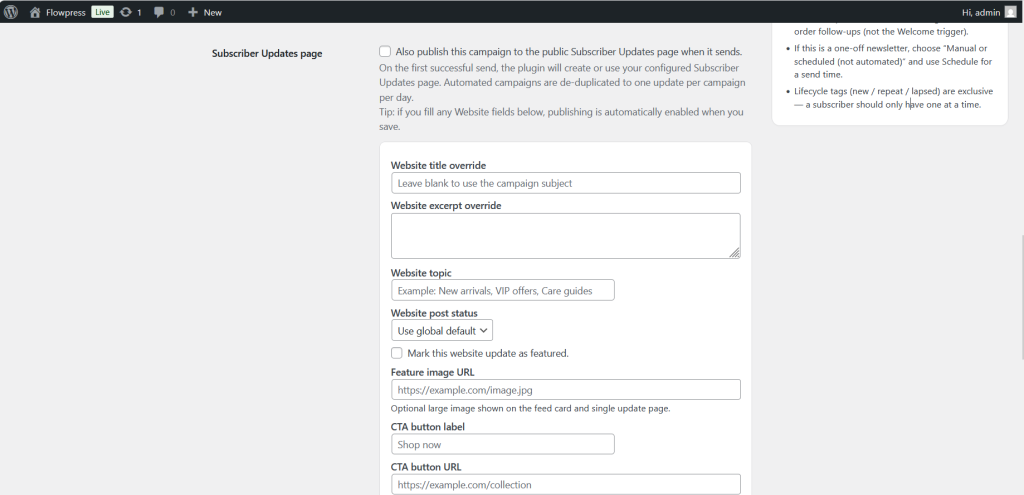
- The exact editor fields may change depending on enabled FlowPress modules and WooCommerce product data.